Christmas Morning Tech: How to Set Up Your New Gadgets
Nothing kills the Christmas vibe like a new gadget that won’t connect, won’t update, or won’t sign in. You want the fun parts now—not an hour of “why is this spinning?” This Christmas morning tech setup guide is the same approach Trevor and I use when we’re unboxing review units: get everything running fast, secure it, and avoid the most common time-wasters.
From phones and laptops to smart speakers and game consoles, this checklist keeps you moving while everyone else is still hunting for passwords.
Disclaimer: As an Amazon Associate, TrevMart earns from qualifying purchases at no extra cost to you.
Before You Start: The 10-Minute Setup Staging Area
Set yourself up for success before you peel the plastic. Most “setup problems” are really missing-info problems.
Grab these basics
- Wi‑Fi name + password (and the router login if you might need to tweak settings)
- Account logins for Apple ID/Google/Microsoft, plus streaming services
- A charged phone (many gadgets need an app to finish setup)
- Charging gear: USB‑C cable, Lightning cable, spare wall adapter, power strip
- Optional but helpful: Ethernet cable for consoles/PCs to speed up big downloads
Do a quick Wi‑Fi reality check
If multiple people are setting up devices at once, your Wi‑Fi can get slammed. If you have a dual-band or tri-band router, connect downloads to the faster band (often 5 GHz or 6 GHz) so updates finish sooner.
Step 1: Power On, Update First (Yes, Before You “Play”)
Updates are annoying, but they fix bugs, patch security issues, and improve battery life. Getting them done first prevents you from redoing setup later.
Best practice: update while it’s charging
- Phones/tablets: update the OS, then update apps. This reduces crashes and weird sign-in loops.
- Laptops: run system updates, then firmware/BIOS updates (if prompted) for stability and security.
- Consoles: update the console OS and controller firmware. It can fix pairing and latency issues.
- Smart devices: update whichever hub/app runs them first (Google Home, Alexa, HomeKit).
Step 2: Lock It Down in 5 Minutes (Don’t Skip This)
New tech is a gift, but it’s also a data magnet. A few settings now can save you from headaches later.
Security essentials you should enable
- Passcode + biometrics: use Face ID/Touch ID/fingerprint so you’ll actually lock the device.
- Two-factor authentication (2FA): protects your accounts even if a password leaks.
- Find My / device tracking: helps recover lost phones, tablets, and laptops.
- Automatic backups: cloud or local backups so photos and notes survive accidents.
Quick privacy wins
- Turn off ad personalization where possible.
- Review app permissions (location, mic, camera). Only allow what you need.
- If it’s a shared family device, set up separate profiles for cleaner recommendations and privacy.
Step 3: Make It Fast and Seamless (The “Feels Like New” Tweaks)
This is where your new gadget stops feeling like a fresh install and starts feeling like yours.
Phones and tablets
Transfer essentials first: contacts, photos, and authenticator apps. Then set up payments and messaging so you’re not stuck mid-day switching devices.
- Battery settings: enable optimized charging so the battery ages slower.
- Notifications: trim noisy apps now to keep your lock screen useful.
- Storage: enable cloud photo optimization so you don’t fill up space in a week.
Laptops and desktops
Install only what you’ll use in the first week. A lean setup stays fast and makes troubleshooting easier.
- Browser + password manager: so logins are secure and painless.
- Security: built-in protection is usually enough—avoid “bonus” antivirus trials that slow things down.
- Backups: set a schedule so files are protected without you thinking about it.
Smartwatches and earbuds
The biggest benefit here is convenience. Set them up right and they disappear into your routine.
- Ear tips and fit: better seal means better bass and stronger noise canceling.
- Disable loud prompts: on earbuds if they’re obnoxious in public.
- Watch health features: enable the ones you’ll actually use so battery life stays strong.
Step 4: Smart Home Gear Without the Headache
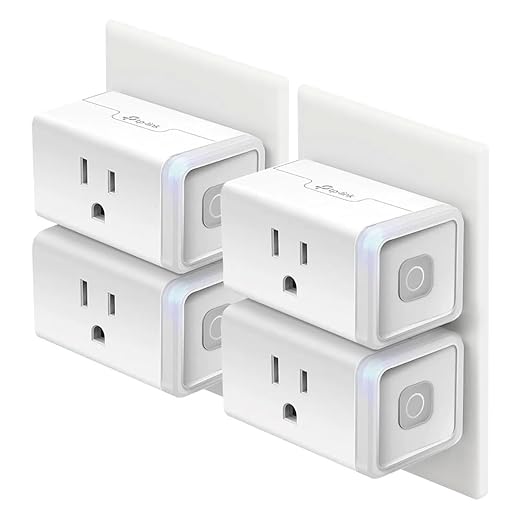
Smart plugs, speakers, lights, cameras, and doorbells can be amazing—if you avoid the usual network issues.
Use a dedicated “smart home” approach
- Name devices clearly: “Kitchen Lamp” beats “Smart Bulb 3F2A.” Voice commands work better.
- 2.4 GHz vs 5 GHz: many smart devices prefer 2.4 GHz for range. Don’t fight it.
- Create routines: “Good Night” should turn off lights and lock doors, not just one bulb.
Camera and doorbell setup priorities
- Placement: aim for faces, not backlight. Don’t point directly at bright windows.
- Notifications: tune motion zones so you don’t get pinged for every car.
- Storage: decide upfront—cloud plan for convenience, local storage for control.
Step 5: Consoles and Gaming PCs (Fast Track to Playing)
Game updates can be huge. The goal is to download everything while you eat breakfast, not after dinner.
Speed tips that actually work
- Use Ethernet if possible for faster, more stable downloads.
- Set auto-updates so future patches happen overnight.
- Install your “today” games first and queue the rest for later.
- Enable cloud saves so progress follows you between devices.
Pros & cons of going all-digital on day one
- Pros: no discs to swap, instant re-downloads, easy game sharing within supported family plans.
- Cons: big downloads, storage fills quickly, you’re tied to account access.
Common Christmas Morning Tech Problems (And the Fixes)
If setup goes sideways, it’s usually one of these. Fix the root cause and you’ll get back on track fast.
Wi‑Fi won’t connect
- Restart the router and the device.
- Check if the device needs 2.4 GHz (common for smart home gear).
- Disable VPN during setup if you’re using one.
Device stuck on update
- Plug it in and be patient for 10–15 minutes (some updates look frozen).
- If it truly hangs, force restart and try again on a stable connection.
- Free up space if the device is low on storage.
Can’t sign in or forgot passwords
- Use a password manager reset flow, not repeated guesses (lockouts waste time).
- Check your authenticator app transfer if you changed phones.
- Make sure date/time are correct—wrong time breaks logins and certificates.
Martin’s Take: Do this before installing “all the apps”
Create a clean baseline: update the OS, turn on backups, enable 2FA, and set a recovery email/phone number. If something breaks later, you’ll know it wasn’t your third random utility app that caused it.
Recommended Setup Extras (Nice-to-Have, Not Required)
If you got gift cards or you’re filling gaps, these are the accessories we see pay off the fastest.
- USB‑C fast charger: shorter charge times so you’re not chained to an outlet.
- Surge protector: protects expensive tech from power spikes.
- Extra-long charging cable: makes couch charging actually convenient.
- External SSD or microSD (where supported): more space for games, photos, and video without constant cleanup.