5 Essential Tech Tools for Remote College Students
Remote classes sound convenient until your laptop chokes during a Zoom lecture, your Wi-Fi drops mid-quiz, or your audio makes you “that person” in group projects. If you’re shopping for tech tools for remote college students, the goal isn’t flashy gear—it’s reliable gear that removes friction from studying, presenting, and collaborating.
From the TrevMart perspective, Trevor and I were discussing what actually moves the needle for online school: fewer distractions, cleaner audio, and a setup that doesn’t waste your time every day.
Disclaimer: As an Amazon Associate, TrevMart earns from qualifying purchases at no extra cost to you.
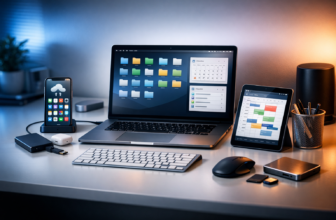
1) A Reliable Laptop (Your Remote Campus HQ)
Your laptop is your classroom, library, and group-meeting room. The right one should handle video calls, research tabs, and essays at the same time without lag.
If your current laptop is older than your freshman orientation hoodie, upgrading can be the single biggest quality-of-life improvement.
What to look for
- 16GB of RAM so you can keep Zoom, Google Docs, and 20 browser tabs open without stutters.
- 512GB SSD storage so files open fast and you don’t run out of space mid-semester.
- A modern CPU (Intel Core i5/i7 or AMD Ryzen 5/7) for smooth multitasking and faster exports for presentations.
- 1080p webcam (or a decent one plus an external camera) so you don’t look like a blurry witness on a news broadcast.
- All-day battery (aim for 8+ real hours) to survive back-to-back classes without hunting for an outlet.
Pros & Cons
- Pros: Faster work, fewer crashes, cleaner video calls, less wasted time.
- Cons: Biggest upfront cost; you’ll want a protective sleeve/backpack.
2) A Noise-Canceling Headset With a Real Mic
Remote college success often comes down to one thing: being heard clearly. A proper headset reduces background noise and keeps you focused when roommates, family, or hallway chaos kick in.
Built-in laptop mics pick up everything. A dedicated headset mic makes your voice the main event.
What to look for
- Active noise canceling (ANC) to remove low-end noise like fans, buses, or a loud neighbor.
- Boom mic or strong noise reduction so your voice stays clear during discussions.
- Comfort for long sessions (lightweight, padded ear cups) for 2-hour lectures.
- Dual connectivity (Bluetooth + wired or USB dongle) for easy switching between phone and laptop.
Pros & Cons
- Pros: Better participation, fewer “can you repeat that?” moments, improved focus.
- Cons: Cheaper models can sound compressed; remember to charge.
3) A 1080p (or Better) External Webcam
When you’re remote, your face is part of your presence. A good webcam helps you look sharp for presentations, office hours, interviews, and group meetings.
Even if your laptop claims “HD webcam,” many are mediocre in low light. An external webcam is a quick fix.
What to look for
- 1080p at 30fps minimum for a clean, natural image.
- Good low-light performance so you don’t look grainy in evening classes.
- Auto-focus and decent dynamic range so your face isn’t blown out by a desk lamp.
- Privacy shutter for peace of mind.
Pros & Cons
- Pros: More professional look, better first impressions, clearer nonverbal communication.
- Cons: Another device on your desk; placement matters.
Before you buy a webcam, fix lighting. A $20 desk lamp pointed at the wall behind your screen (soft bounce light) can make a midrange camera look great. If your face is well-lit, your video instantly looks more “high-end.”
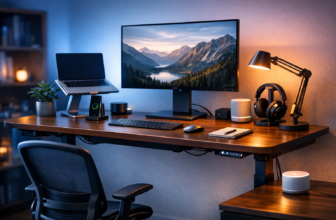
4) A Second Monitor (or Portable Display) for Serious Productivity
Alt-tabbing between a lecture, your notes, and a research article is a productivity tax. A second monitor makes remote learning feel less cramped.
If you’re in a dorm or move a lot, a portable monitor can deliver most of the benefit without the bulk.
What to look for
- 24–27 inches at 1080p or 1440p for comfortable text and side-by-side windows.
- IPS panel so text looks consistent from different angles.
- USB-C connectivity for simple plug-and-play (especially with newer laptops).
- Adjustable stand so you can raise the screen to eye level and reduce neck strain.
Pros & Cons
- Pros: Faster research, easier note-taking, smoother labs and spreadsheets.
- Cons: Takes desk space; you may need a dongle depending on your laptop.
5) A Wi-Fi Upgrade: Router, Mesh System, or USB Adapter
Remote college runs on stable internet. If your connection drops during exams, lectures, or presentations, you’re not just annoyed—you’re at risk of missing points.
A small networking upgrade can turn “spotty Wi-Fi” into “it just works.” This is especially true in older apartments, shared housing, and dorms with congested networks.
Choose the right fix
- New router (Wi-Fi 6 or 6E): Best when you control the network and want stronger performance.
- Mesh Wi-Fi system: Best for larger homes or dead zones—multiple nodes spread coverage evenly.
- USB Wi-Fi adapter: Best as a quick, budget-friendly improvement for desktops or weak laptop antennas.
- Ethernet cable: Cheapest “upgrade” if you can plug in—rock-solid for exams and big uploads.
Pros & Cons
- Pros: Fewer disconnects, smoother video calls, faster downloads, less stress.
- Cons: Dorm networks can limit what you can change; mesh nodes cost more upfront.
Final Verdict: Build a Setup That Saves Time Every Day
The best tech tools for remote college students aren’t about showing off. They’re about removing friction: a laptop that doesn’t lag, a headset that makes you sound clear, a webcam that looks professional, a second monitor that speeds up work, and Wi-Fi you can trust.
If you’re prioritizing purchases, start with the biggest pain point you feel weekly. For many students, that’s either audio (headset) or connectivity (Wi-Fi). Then upgrade the laptop and add a second screen when you can.
Your turn: What’s the one piece of tech that’s helped you most with remote classes—and what are you still struggling with?