How to Boost Your Home Internet Speed Without a New Plan
You’re paying for fast internet, but your Wi‑Fi feels stuck in traffic—buffering videos, laggy Zoom calls, and downloads that crawl. The good news: you can boost your home internet speed without a new plan by fixing the stuff between your modem and your devices. Trevor and I were discussing how most “slow internet” complaints are really “slow Wi‑Fi” problems, and a few smart tweaks can make your connection feel brand new.
Disclaimer: As an Amazon Associate, TrevMart earns from qualifying purchases at no extra cost to you.
1) Check if it’s your internet or your Wi‑Fi
Before you buy anything, confirm where the bottleneck is. Internet speed (from your ISP) and Wi‑Fi speed (inside your home) are not the same thing.
Run a wired speed test first
Plug a laptop or desktop directly into your router (or modem/router combo) with an Ethernet cable. Then run a speed test.
- If wired speed is close to what you pay for: your ISP is fine, and your Wi‑Fi setup needs work.
- If wired speed is also slow: restart gear, check outage pages, and call your ISP before spending money.
Compare device results
Test your phone, a newer laptop, and an older device. If only one device is slow, the fix might be as simple as updating drivers or replacing a flaky Wi‑Fi adapter.
2) Move your router like you mean it
Router placement is the cheapest “speed upgrade” you’ll ever do. Walls, floors, appliances, and even mirrors can chew up signal strength.
Best placement rules
- Place the router central in the home (not tucked in a far corner).
- Put it higher (on a shelf), not on the floor.
- Keep it away from metal objects, fish tanks, and big appliances.
- Avoid cabinets and closets—Wi‑Fi needs open air.
Quick win: rotate and reposition antennas
If your router has antennas, don’t point them all the same way. Try one vertical and one angled to help coverage across floors and rooms.
3) Restart and update your network gear
Routers are small computers. They get bugs, memory leaks, and performance issues just like anything else.
Do a proper reboot (in the right order)
- Unplug modem and router.
- Wait 60 seconds.
- Plug in the modem first and wait until it’s fully online.
- Plug in the router next.
Update router firmware
Firmware updates can improve stability, security, and performance. Open your router app or admin page and check for updates.
4) Use the right Wi‑Fi band (2.4GHz vs 5GHz vs 6GHz)
Many homes are stuck on the wrong band. Switching can feel like a speed boost even though your plan didn’t change.
When to use each band
- 2.4GHz: better range, slower speed. Good for smart home devices and long-distance coverage.
- 5GHz: faster speeds, less range. Best for streaming, gaming, and work devices in the same room or nearby.
- 6GHz (Wi‑Fi 6E/7): fastest and cleanest airwaves, but shortest range. Great for high-performance rooms and newer devices.
Split your network names (SSIDs) if needed
If your router uses “smart connect” and your devices keep jumping to the slower band, create separate Wi‑Fi names like MyWiFi-2.4 and MyWiFi-5G. Then put important devices on the faster band.
5) Pick a better Wi‑Fi channel (especially in apartments)
If you live near other networks, interference can tank speeds. Channel selection matters most on 2.4GHz, but 5GHz can get crowded too.
What to try
- 2.4GHz: use channels 1, 6, or 11 (avoid “Auto” if it keeps picking badly).
- 5GHz: try different non-DFS channels if your router supports it.
- Use a Wi‑Fi analyzer app to see which channels are crowded, then switch.
6) Upgrade the right hardware (without upgrading your plan)
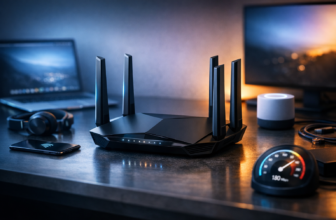
If your router is old, your internet plan might be fine—you just can’t access its speed reliably over Wi‑Fi. A modern router or mesh system can increase real-world speed and coverage.
Signs your router is the limiting factor
- It’s more than 4–5 years old.
- No support for Wi‑Fi 6 (802.11ax) or newer.
- Devices drop connection when multiple people stream or game.
- Dead zones that extenders never really fix.
Mesh vs. extender vs. access point
- Mesh Wi‑Fi: best for whole-home coverage with consistent performance.
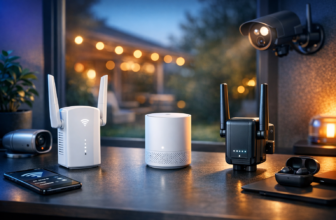
- Wi‑Fi extender: cheap, but often cuts speed and adds latency.
- Wired access point: best performance if you can run Ethernet to another location.
What to look for in a new router/mesh system
- Wi‑Fi 6 or 6E: better speed under load so multiple devices can stream and browse without slowdown.
- Tri-band: keeps backhaul traffic from stealing bandwidth from your devices.
- Gigabit (or 2.5GbE) ports: faster wired connections for PCs, consoles, and NAS devices.
- Strong QoS: prioritizes gaming/video calls so they stay smooth during downloads.
Martin’s Take: If you’re choosing between “faster Wi‑Fi” and “better coverage,” pick coverage first. A strong, stable signal almost always beats a router that’s fast on paper but only in the same room. For most homes, a mesh system placed correctly will feel like a bigger upgrade than chasing top-end specs.
7) Use Ethernet where it matters most
Nothing beats a cable for stability and speed. If you can wire just a few key devices, you’ll notice the difference immediately.
Best candidates for Ethernet
- Gaming consoles and gaming PCs (lower ping, fewer spikes).
- Work desktops (more reliable video calls).
- Streaming boxes and smart TVs (less buffering at peak hours).
No way to run cables? Try MoCA
If your home has coax TV outlets, MoCA adapters can use that wiring for fast, low-latency networking. It’s often faster and more stable than powerline adapters.
8) Turn on Quality of Service (QoS) and reduce network noise
When someone starts a big download, everyone else feels it. QoS helps keep important traffic smooth.
QoS settings that actually help
- Prioritize video conferencing apps and gaming devices.
- Set bandwidth limits for guest networks or specific devices if your router supports it.
- Enable “Smart QoS” or “Adaptive QoS” if available, then monitor results.
Cut down on background hogs
Cloud backups, game updates, and security cameras can eat bandwidth nonstop. Schedule backups overnight and check which devices are using the most data in your router app.
9) Secure your Wi‑Fi (because freeloaders slow you down)
If your password is weak or your network is open, someone nearby could be using your bandwidth. Even if they aren’t, better security features can improve network stability.
Security checklist
- Use WPA2 or WPA3 (avoid WEP).
- Change default admin login details for the router.
- Use a strong Wi‑Fi password and rotate it if you’ve shared it widely.
- Disable WPS if you don’t need it.
Conclusion: Faster internet without paying more
You don’t need a pricier plan to get faster-feeling internet. Start by testing wired vs. Wi‑Fi, fix router placement, update firmware, and move key devices to 5GHz/6GHz or Ethernet. If the router is the weak link, a Wi‑Fi 6/6E router or a well-placed mesh system can make your current plan finally feel like what you’re paying for.
What’s your biggest problem right now—dead zones, slow speeds in one room, or lag during gaming and video calls? Tell us in the comments and we’ll help you pinpoint the best fix.